
Extract Attachments from PST Files
MailRelic extracts attachments from PST files and saves them to a folder on your computer. Save attachments one at a time from any message for free, or extract every attachment in a folder or the whole archive with MailRelic Personal.
One attachment: free
Open a message. Its attachments are listed with it; choose Save… next to the one you need and pick where to save it. The free download does this for any number of attachments, one at a time.
All attachments: MailRelic Personal
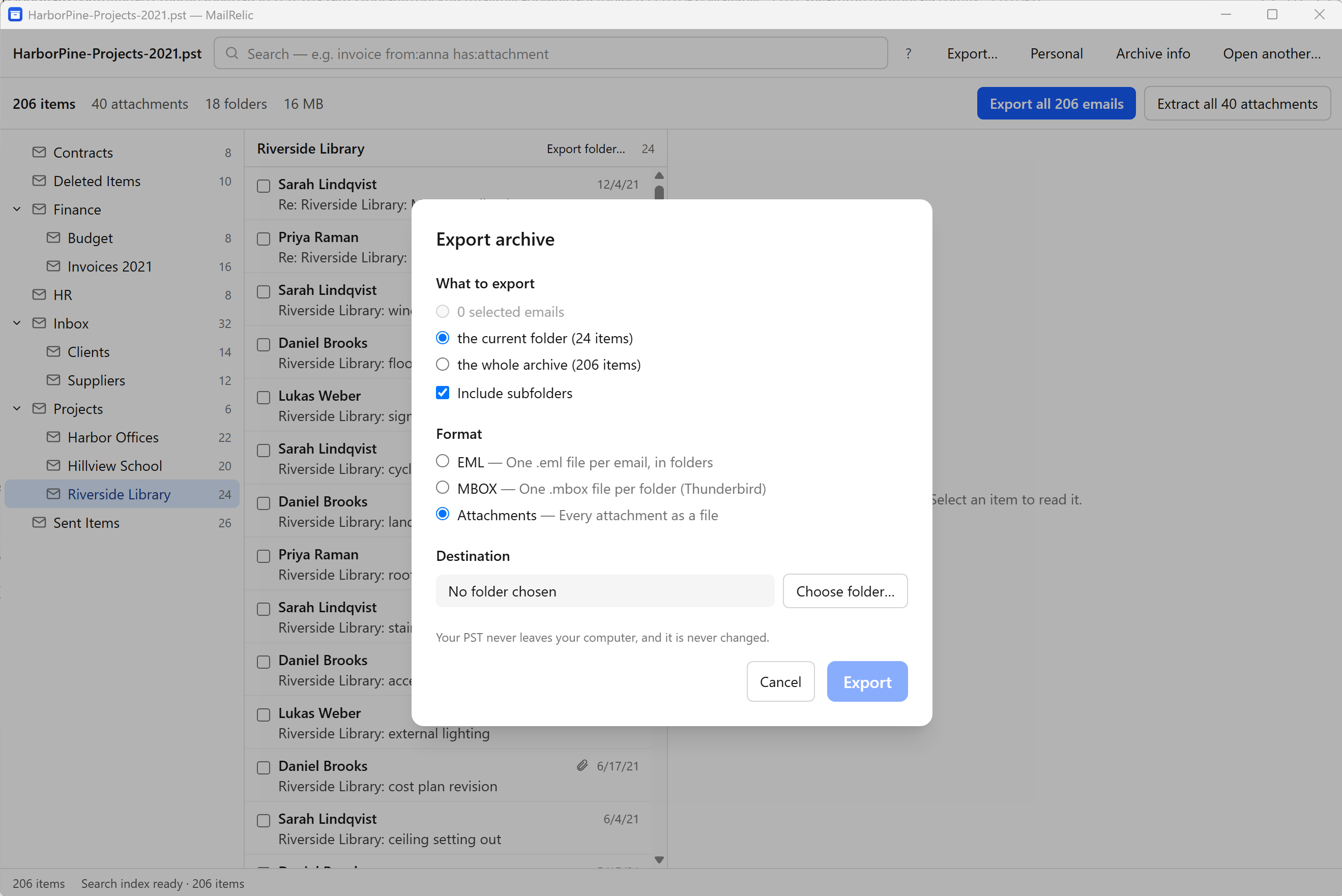
Use Extract all attachments in the archive summary for the whole archive, or open the Export dialog for one folder or selected messages and choose Attachments. Pick a destination, and MailRelic saves every attachment in one job.
How the files are organised
Extracted attachments are placed in folders that follow the folders of the archive. Each message's attachments go into their own folder, named with a number and the message subject, so attachments with the same file name do not overwrite each other.
- File names are kept, including names in other alphabets.
- Each file is written with exactly the bytes stored in the PST.
- Inline images from HTML messages are extracted as well.
- Attachments inside attached emails are extracted too.
When the job finishes, the summary shows how many attachments were saved and how many messages had none. Messages without attachments are not errors.
Objects that Outlook stores in its own internal format, such as an embedded Office document, are saved as raw data and marked with a warning in the report. Attachments that are only a link to a file stored elsewhere contain no data, so there is nothing to save; they are listed in the report as well.
To keep attachments together with their messages, export to EML instead.