Support
Answers to common questions about installing MailRelic, opening PST files and licences. For anything else, write to support@mailrelic.com.
Downloading and installing
- Download the installer. MailRelic 1.0.0 runs on Windows 10 or Windows 11, 64-bit.
- The installer installs MailRelic for the current Windows user and does not need administrator rights.
- If the Microsoft Edge WebView2 Runtime is missing, the installer downloads it, so it needs an internet connection. Windows 11 already includes WebView2.
- If Windows SmartScreen shows a warning, choose More info to see the publisher. The installer is signed by Ante Tomić.
A PST file does not open
MailRelic shows a message that names the problem and suggests what to do. It never changes the file, and it does not repair damaged PST files.
| Message | What to do |
|---|---|
| Older Outlook file format | The file is an ANSI PST from Outlook 97 to 2002. Open it in a current version of Outlook, export it to a new PST file, and open that file in MailRelic. |
| OST files are not supported | OST is Outlook's offline copy of a mailbox. In Outlook, export the mailbox to a PST file, then open the PST. |
| Not an Outlook data file | The file is not a PST. Check that you chose the .pst file. |
| The file is incomplete | The PST is cut short. If it was copied or downloaded, copy it again and make sure the copy finished. |
| Unrecognised PST version | The file may be damaged, or it was created by software MailRelic does not support. |
If the file cannot be read at all, check that no other program has it open. Outlook keeps a PST open while it is running, so close Outlook first.
Activating MailRelic Personal
- Open MailRelic and choose Licence in the top bar.
- Paste the licence key from your purchase email and activate.
- The top bar then shows Personal.
Activation needs an internet connection once. After that, the licence works offline. It is checked in the background about once a month, and a check that fails because there is no internet never switches the app back to the free edition.
The licence key is in the email Lemon Squeezy sent when you paid. If you cannot find it, write to support@mailrelic.com from the address you used for the purchase.
Using the licence on another computer
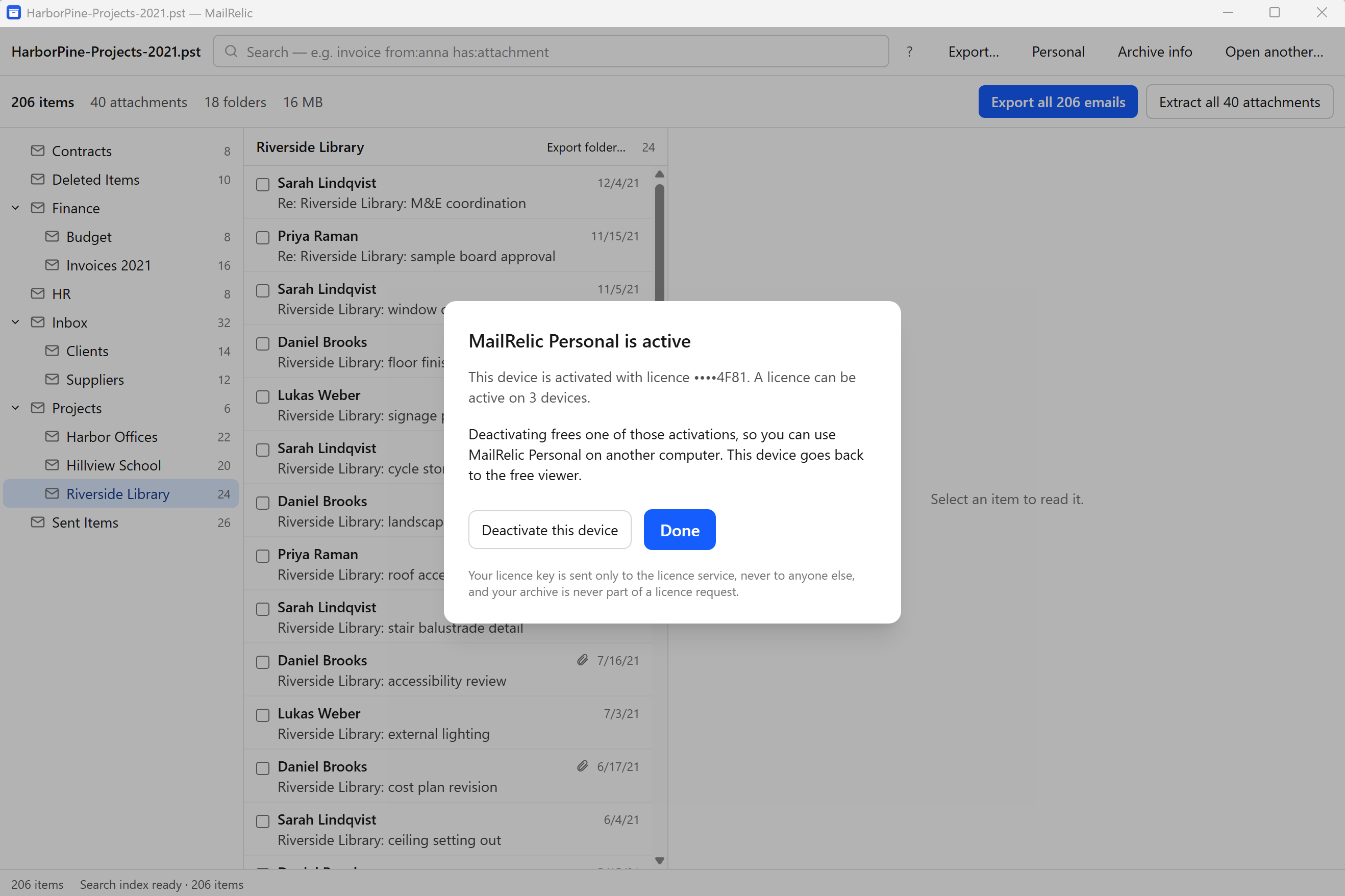
A licence can be active on 3 devices at a time. If activation says the licence has reached its maximum number of devices, open MailRelic on a computer you no longer use, choose Personal in the top bar, then Deactivate this device. That frees one activation.
Uninstalling MailRelic does not deactivate it: the licence stays on that computer, so
reinstalling there does not use another activation. To remove all MailRelic settings
and the licence from a computer, delete the folder
%APPDATA%\app.mailarchive.viewer.
Contacting support
Write to support@mailrelic.com. Include the MailRelic version, your Windows version and the exact text of any message MailRelic showed.
Do not send your PST file or its contents. Support does not need them to help, and your archive should stay on your computer.