
Export PST to EML
MailRelic converts email in a PST file to .eml files on Windows. Each message becomes one .eml file, and the files are placed in folders that match the folders in the archive.
Saving a single message: free
Open the message in MailRelic and choose Export as EML…. Pick where to save the file. This works in the free download, for as many messages as you like, one at a time.
Export jobs: MailRelic Personal
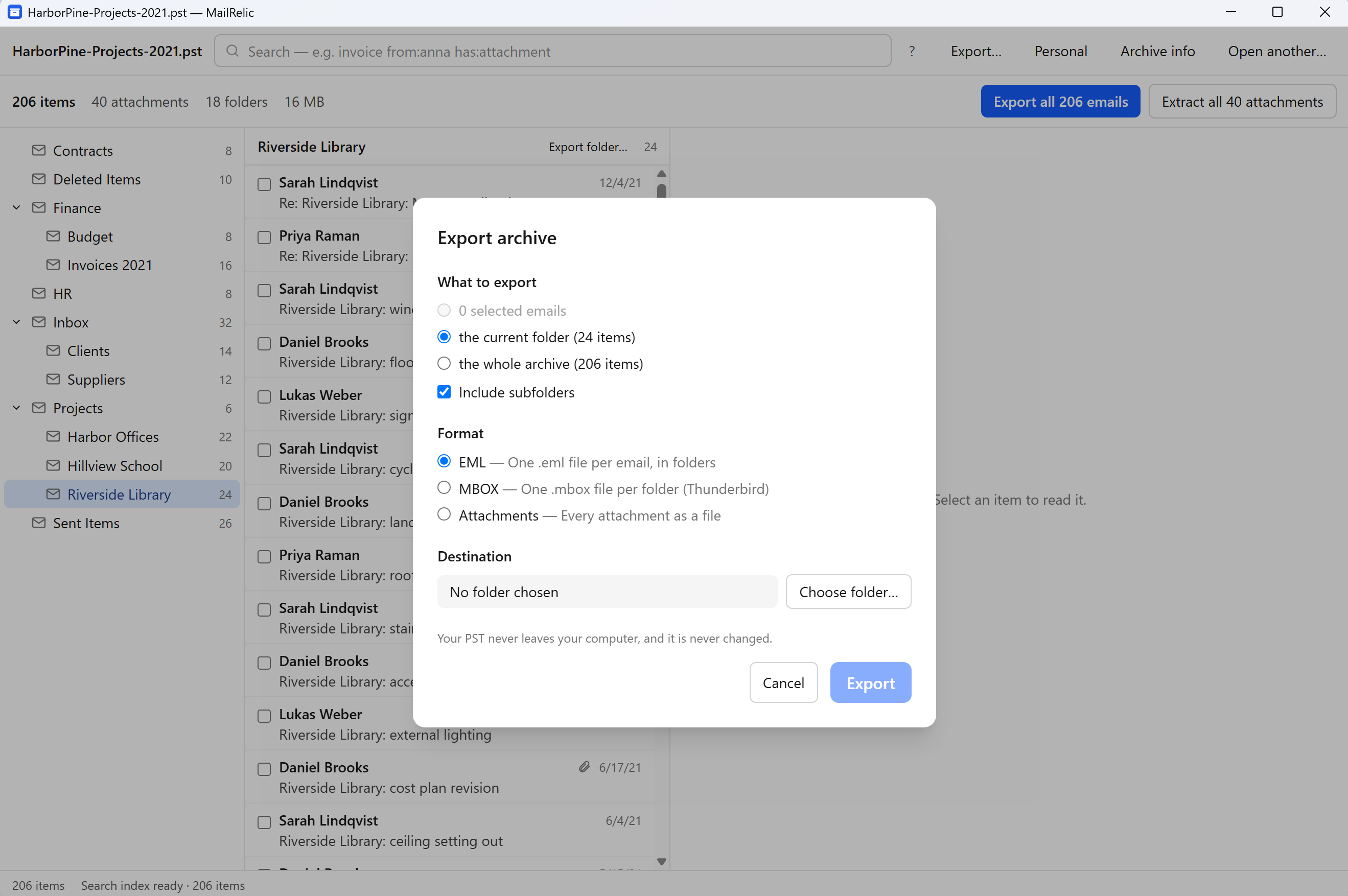
Use Export all emails in the archive summary, Export folder… above the message list, or select messages and export the selection. In the Export dialog, choose EML and a destination folder. MailRelic writes every message in one job. Any export started from the Export dialog needs MailRelic Personal, even when only one message is selected.
What each .eml file contains
- The headers: sender, To, Cc and Bcc recipients, subject, date and message ID.
- The HTML body and a plain-text version where the message has one.
- Attachments, with their original names, including non-Latin characters.
- Inline images, still linked to the HTML body.
- Attached emails, as attached messages inside the .eml.
Messages that Outlook stored only as rich text are converted so the body is not empty. Contacts, calendar items and other items that are not email are exported with a warning, because the EML format cannot hold all of their fields.
The export report
Next to the .eml files, MailRelic writes a report and a manifest listing every item it exported, every attachment, and any warning, such as a message with no sender. When the export finishes, the summary shows how many messages and attachments were written and whether anything needs attention.
EML files exported by MailRelic were opened in Classic Outlook during testing, and a saved attachment matched the original byte for byte. To export whole folders into a single file per folder instead, see PST to MBOX.